AI AGENT COST CONTROL
AI agents with a budget you set
AI agent cost control means setting a hard limit on what autonomous agents may spend and seeing where every token went. C5 caps spend for the whole system or one project and, at the cap, either notifies you or blocks new work until you raise it or the period resets. Ops shows spend by task, model and day, and bulk work can run on a local model.
- Hard cap: notify or block
- System-wide or per project
- Spend by task, model and day

Why AI agents need a budget
Most models cost money per use, and an agent working on a big job can make many calls. A task that loops, a schedule that runs every hour, a larger team of agents — each adds up faster than a chat ever does. A ceiling turns that from a surprise on the bill into a decision you made in advance.
- Frequent schedules are usually the biggest line on the bill — an hourly one runs about 720 times a month.
- More agents, more spend. Every running agent can spend money, so set the budget before you grow the team.
- Background improvement work uses tokens too, in the gaps between real work, on models you choose.
Set a hard cap
- Open Settings › BudgetGo to Settings and open the Budget tab.
- Set the capIn the Hard Budget Cap panel, set the amount and the period — daily, weekly, monthly or yearly — and choose whether reaching it notifies you (Notify) or blocks new work (Block).
- Save and watch itSave. Ops › Token Budget then shows what is being used and spent against the cap: today, the last 7 and 30 days, and the month.
As you get close, C5 warns you. At a cap set to block, it pauses new work and says what happened. Nothing is lost: paused work waits until you raise the limit or the next period begins.
Voice has its own separate spending limit, and C5 works out what a speech request will cost before making it. If you need a separate budget for each task, C5 is the wrong fit: the cap is system- or project-wide, and a task shows what it has spent but does not carry its own limit.
See where the money went
- By time, task and model. The Ops charts break spending down so you can see which jobs and which models cost the most.
- Down to the task. Click into a number and follow the cost to the task that caused it; every task shows what it has used so far.
- ROI reports. Built-in weekly, monthly, quarterly and yearly trackers report tasks, deliverables, cost changes and an estimate of the money saved by running models locally.
- Audit and errors alongside. The same Ops page holds the audit trail and grouped errors, so spend and what went wrong sit side by side.
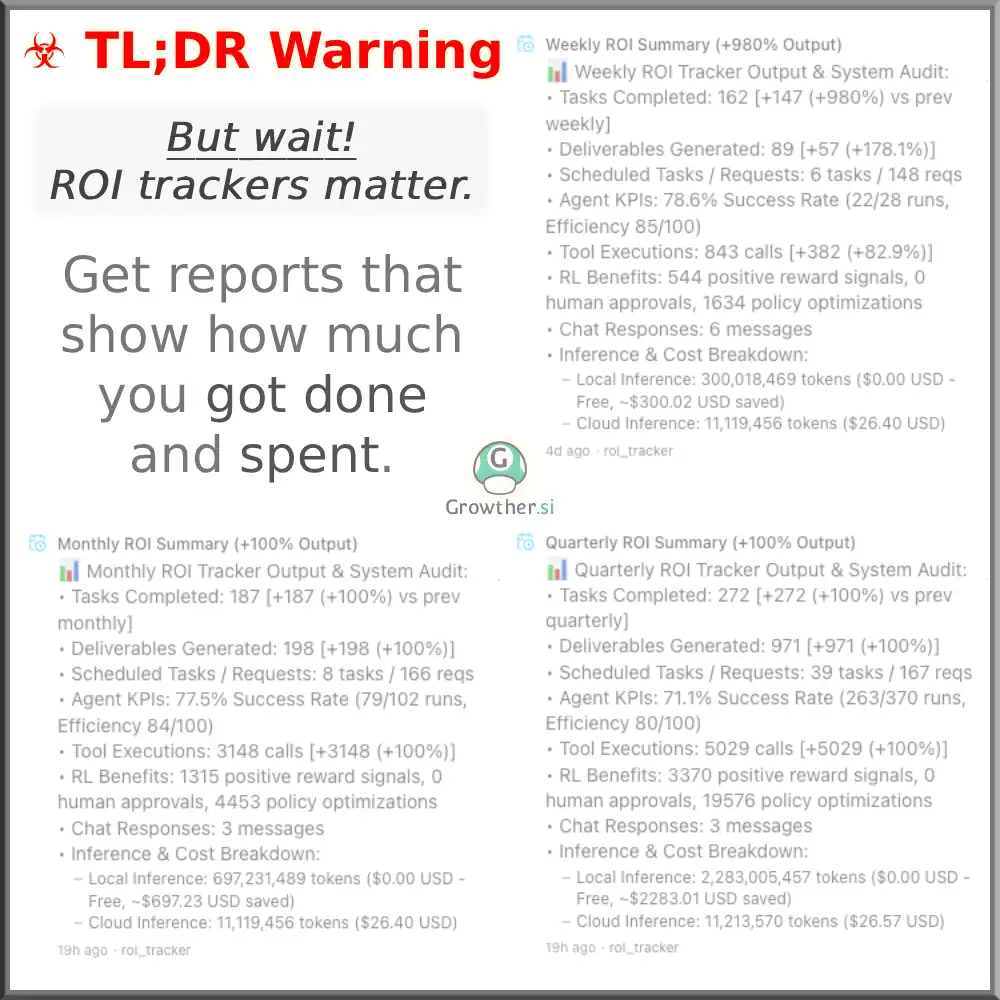 ROI Trackers
Spend less without doing less
Not every job needs your most expensive model. The cheapest token is one a local LLM agent never bills for, and C5 routes each task to the best-fit model you have allowed, so you match the model to the job instead of paying top rates for everything.
| Kind of work | What to use |
|---|---|
| Sorting, labelling, simple formatting | A small, fast model |
| Everyday writing and summarizing | A mid-range model |
| Hard reasoning, tricky analysis, planning | Your strongest model |
| Bulk, repetitive work | A local model, at no cost per use |
- Failing tools are switched off for a while instead of retrying forever, so one broken thing cannot burn the budget.
- Unattended screen control needs a limit — a time or step limit — before a background run may drive the computer.
- Be specific. A clear request takes fewer tries than a vague one; ask for a plan first on big jobs.
Budgets matter most for scheduled AI agents and large multi-agent teams. All of it is tracked on a local AI agent: the usage records live on your machine.
Frequently asked questions
How do I stop an AI agent from running up a huge bill?
Set a hard budget cap in Settings › Budget and choose Block. At the cap, C5 pauses new work instead of spending past it, and paused work waits until you raise the limit or the next period starts. Set the first cap lower than you think you need.
Can I set an AI agent budget for just one project?
Yes. A limit can cover the whole system or one project. The cap counts everything spent since the current period began, by your machine's own calendar. There is no per-task cap; each task shows what it has spent, but the limit sits above it.
Where do I see what my AI agents cost?
In Ops. The Token Budget tab shows daily and weekly token use and spend trends, and the charts break spending down by time, task and model. Each task also shows what it has cost so far.
Does running a local model cost anything?
Not per use. Models served on your own computer through Ollama, LM Studio or llama.cpp cost nothing beyond your hardware and power. Cloud providers bill you directly on your own account for what you send them. C5 itself needs a licence; plans are on Pricing.
What happens to a task that hits the budget limit?
It pauses, and nothing is lost. At a cap set to block, new work waits until you raise the limit or a new period begins. If a budget limit stopped a task with its fix already worked out, rejecting it in human review runs exactly that fix under a fresh budget.
In the docs
Put a ceiling on what your agents spend
Download C5 for macOS, Windows or Linux, set the hard cap before the first big job, and watch every token against it in Ops.