AI AUTOMATION
AI automation that runs on your own computer
AI automation on your computer means agents do multi-step work, from files and reports to clicking through programs, on your machine, not in the cloud. C5 reaches programs through tools and integrations first and drives the screen only for programs with no other way in, recording every action. You set how far it may act before it asks you.
- Screen control off by default
- Reads allowed, writes ask first
- Allow once, 1 hour or 10 uses
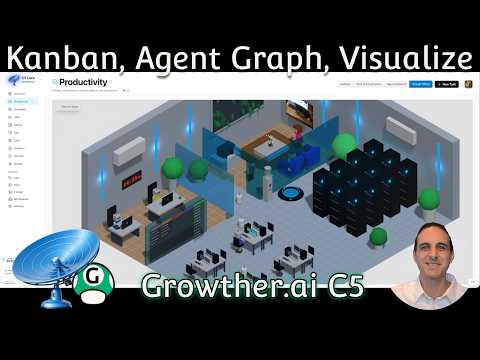
Tools first, screen last
The work you want done lives in files, websites and programs, not in a chat window. C5's agents read and write files, search the web, run commands and work with the programs you connect. Every tool call shows in the task, so you can see what was used, what it asked for and what came back.
| Way in | What it is for | Where you set it |
|---|---|---|
| Built-in tools | Files, web search and reading, commands, images and short videos | Settings › Extensions |
| Integrations | Services you already use, connected with a key or a sign-in | Settings › Integrations |
| MCP servers | New abilities through the open Model Context Protocol, switched on one by one | Settings › Integrations |
| Computer use | Seeing the screen and driving the mouse and keyboard, for programs with no other way in | Settings › Tools (off by default) |
Computer use is the fallback, not the default. Reach for it for an old desktop program with no way to connect to it, a website that only works by clicking through it, or copying between two programs that do not talk to each other. If a tool or integration can do the job, it is faster and safer.
Work with the agents, or let them run
Some jobs you want to watch; others you want to come back to finished. Every job lands on the Productivity board and moves from To do to Done, where you can drag cards, pause, retry or cancel, or turn on Auto Review and let a task finish on its own. One request can become many small tasks that run at the same time — that is multi-agent orchestration at work.

Work you repeat belongs on a timer: schedule an AI agent to run every morning and it shows up on the same board.
Stay in control of what it does
- A permission ladder. Reading is allowed; writing, running commands, sending, deleting and spending ask you first by default; screen control is off.
- Your answer, your scope. Approve once, deny, or always allow one agent one tool — for good, for an hour or for ten uses.
- Autonomy by type of work. Set the minimum autonomy level each kind of work needs, and whether a task below it is downgraded or blocked.
- Guardrails that win. Redaction of personal data in tool arguments and limits on where web tools may connect run whatever else is set.
- Stop and pause. Stop halts an agent's next step at once; Master Pause halts all new task steps for everyone.
- A record of everything. Tool decisions and permission changes are listed in Ops › Audit.
All of it runs on a local AI agent: the files it touches and the screenshots it takes stay in your data folder. Route a task to a cloud model and that provider receives the text the task sends it; keep it on a local model and nothing leaves the machine — see what a private AI agent means.
If you want an automation that nobody at the machine has to approve, C5 is the wrong fit: computer use stays off until an administrator turns it on there, and sending, deleting and spending ask first by default.
Computer use, with the brakes on
Some programs have no connection, no export and no API, and for those computer use is the way in. When it is on, the agent takes a picture of the screen, decides what to do, moves the mouse or types, then looks again. You see every action as it happens; nothing runs invisibly.
- Off until an administrator turns it on at the machine, under Settings › Tools › System Control. Your operating system asks for permission too.
- Only programs you allowed. An agent can work only with the programs you approved.
- Risky clicks ask where C5 can tell. Actions that look like sending, deleting, publishing or paying stop for your approval first.
- Unattended runs need a limit. A background task must carry a time or step limit before it may drive the screen.
- Every action is recorded — what was clicked, what was typed and what was on screen — in the task's history.
Keep passwords, card numbers and one-time codes out of any automated flow. If a job needs them, do that step yourself and let the agent carry on.
Ideas to automate this week
- Rename and sort a folder of downloads into dated project folders.
- Read three reports and write one summary of where they disagree.
- Find every file in a project that still uses an old company name.
- Copy figures from a desktop program with no export into a spreadsheet, with computer use.
- Turn a finished post into follow-up tasks with recipes that run after you approve it.
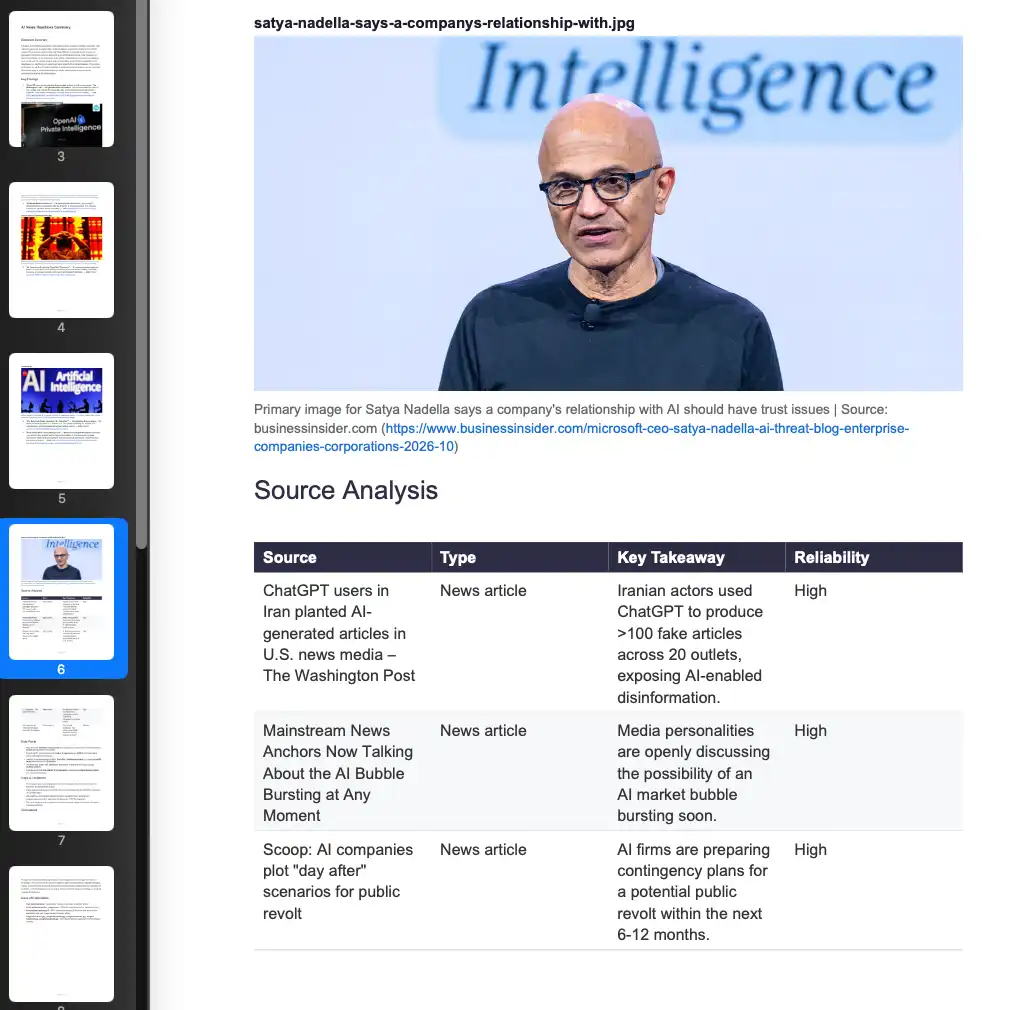 News & Research Compilation
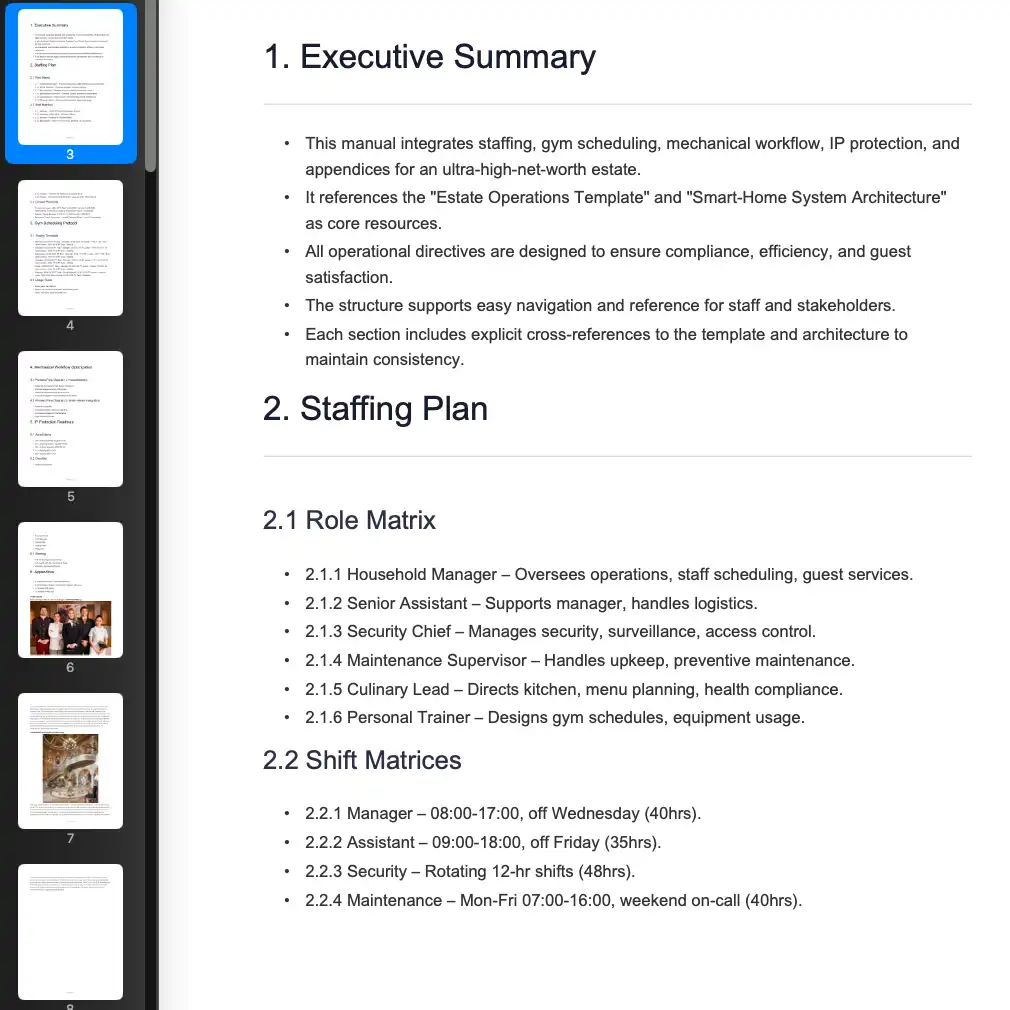 Comprehensive Estate Operations Manual Compilation
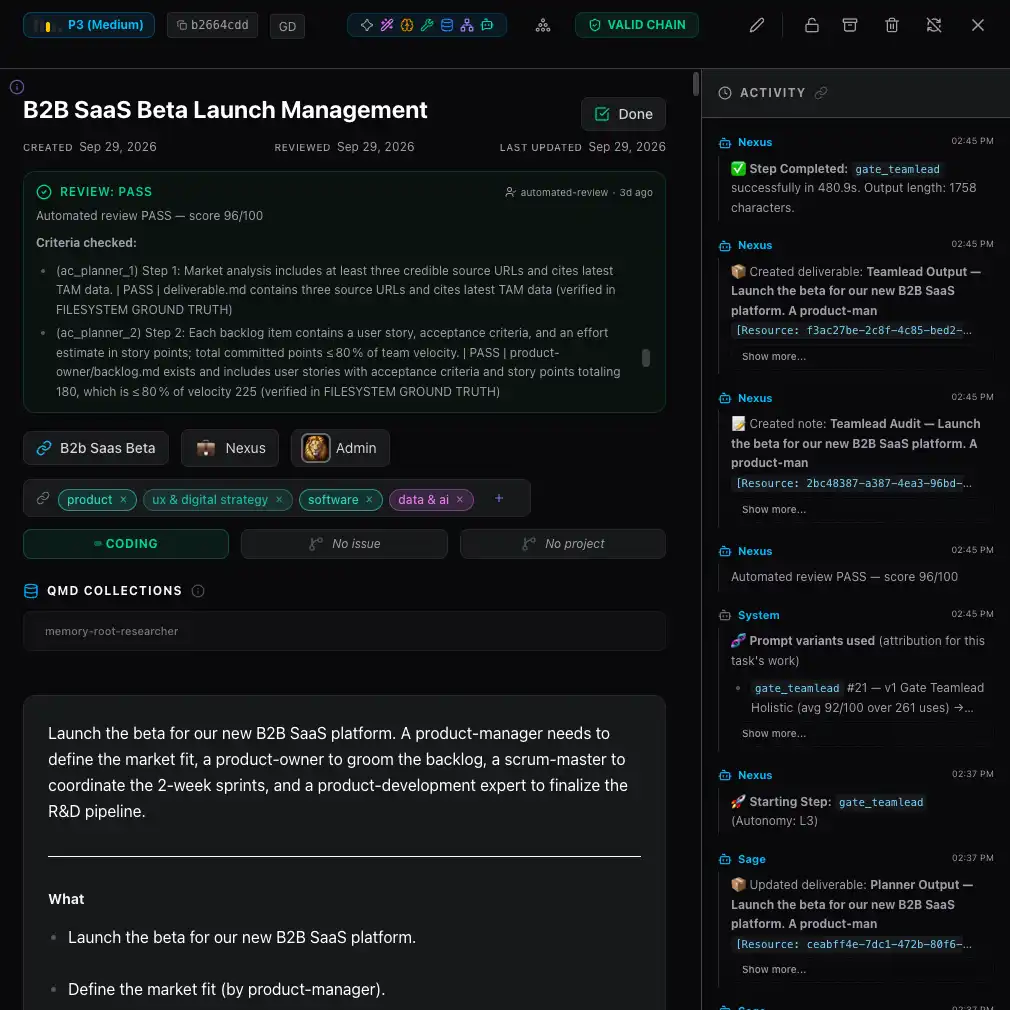 B2B SaaS Beta Launch Management
Frequently asked questions
Is letting an AI control my computer safe?
It depends on the brakes around it. In C5 it is off until an administrator turns it on; agents work only with programs you allowed, risky-looking clicks ask first, unattended runs need a time or step limit, and every action is recorded. Try it on something harmless first, and stay at the desk the first few times.
Can the AI work while I use my computer?
Yes, for most automation: file, web and integration work runs in the background while you carry on. Computer use is the exception — you and the agent share one pointer, so let it finish or press Stop rather than moving the mouse yourself.
Which apps can C5 automate on my computer?
Any service with an integration or an MCP server, through that connection. For a program with no other way in, computer use can work with it by sight, as long as you have allowed that program. The current integration list is in C5 under Settings › Integrations.
Does C5 support MCP servers?
Yes. Add one under Settings › Integrations with its command or address, then switch on only the abilities you want agents to have. MCP tools go through the same permission checks as everything else and are recorded the same way.
Can I stop an automation halfway?
Yes. Click Stop and the agent stops taking new steps right away. Stop is a brake, not an undo: a file already written stays written, and a message already sent stays sent.
In the docs
Automate the work on your own computer
Download C5 for macOS, Windows or Linux, connect the tools you already use, and set how far the agents may act before they ask you.