SCHEDULED AI AGENT
A scheduled AI agent that does recurring work on its own
A scheduled AI agent runs a task at a time you set — once, or every day, week, month or year — without being asked. C5 takes the schedule in plain words, as you would ask in chat, and runs it on your own computer, offline with a local model. Anything that needs a decision waits for you in one review window.
- Once, daily, weekly or by cron
- 5 retries on a Send Request
- Catches up after sleep
Good things to schedule
If you ask for the same thing over and over, it should be a schedule. Set it up once and C5 does it again at the time you chose, with the same specialists and checks as any other task.
- A weekly summary every Friday afternoon.
- A morning check of your inbox or a news topic before you start work.
- A month-end report pulled together on the first of the month.
- A nightly tidy-up of a downloads or project folder.
- ROI reports — C5's built-in trackers audit your own tasks, deliverables and costs weekly, monthly, quarterly and yearly.

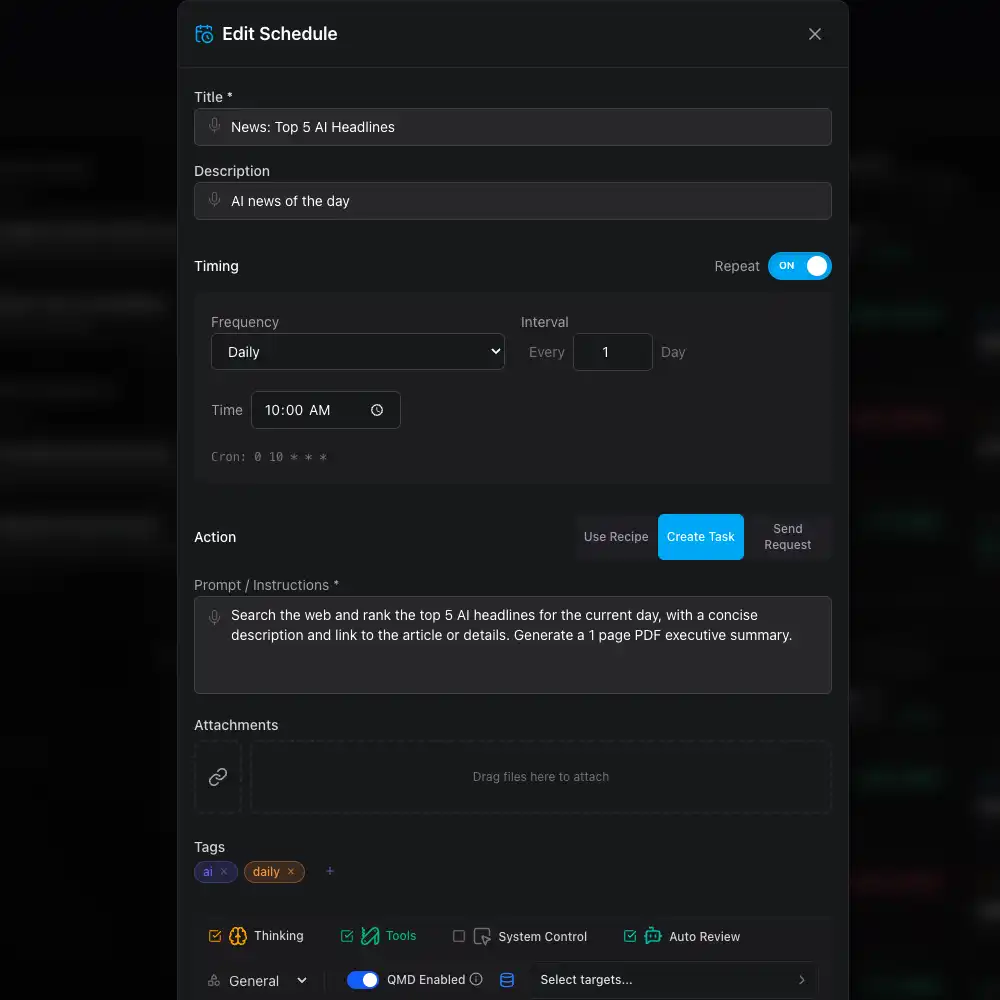 News: Top 5 Al Headlines
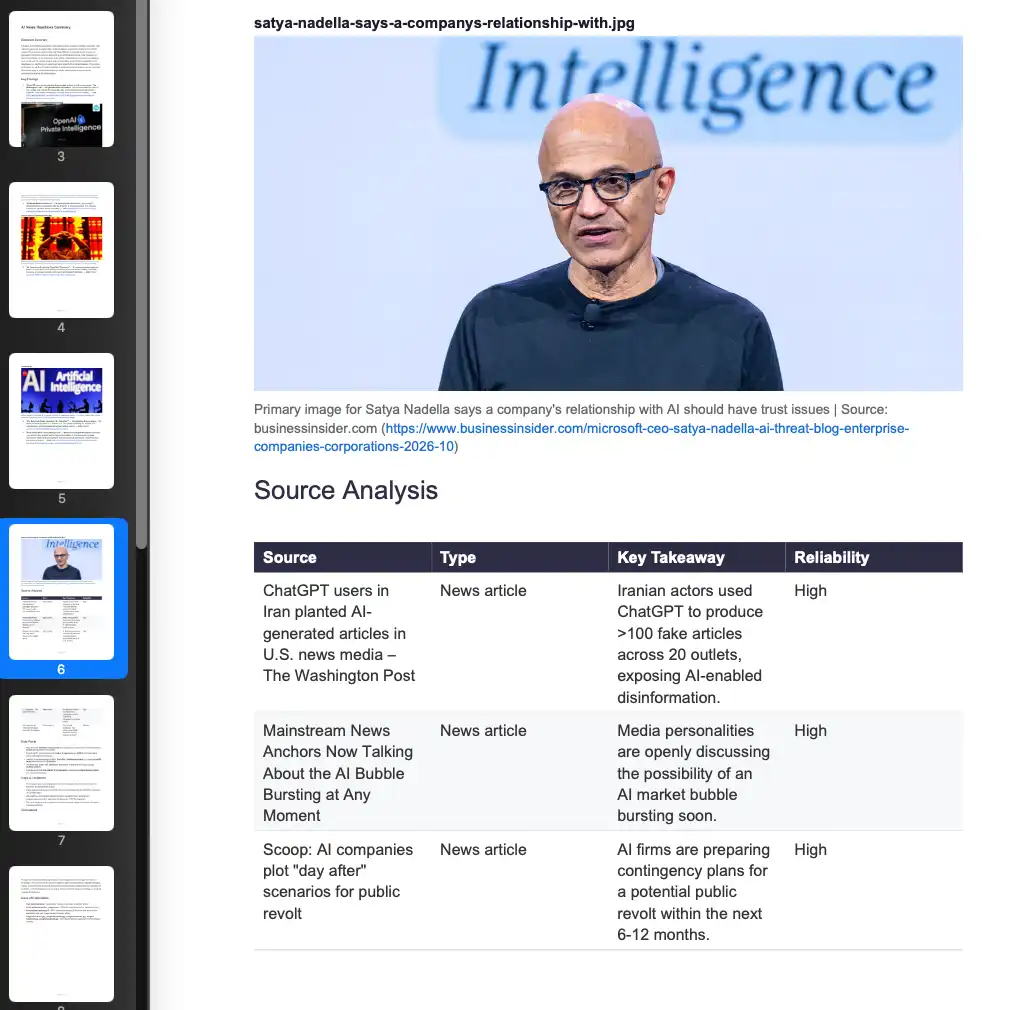 News & Research Compilation
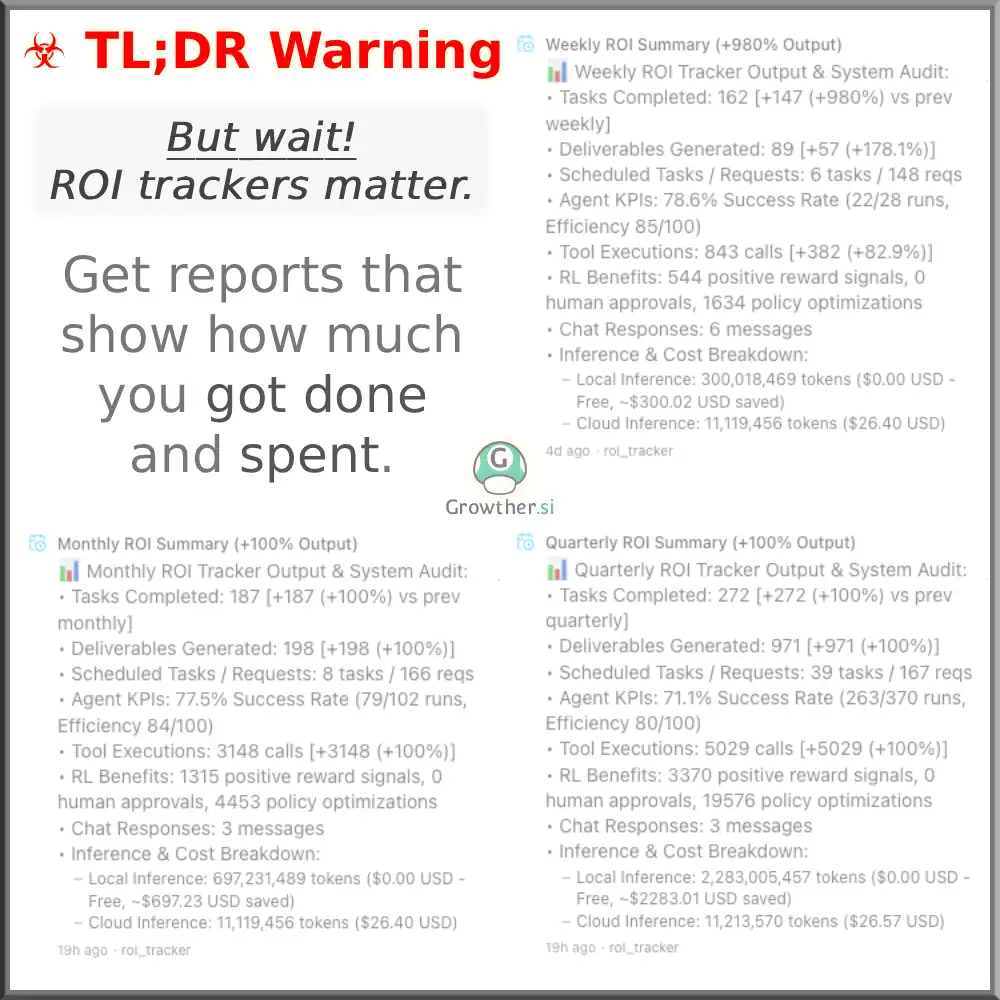 ROI Trackers
How to set up a scheduled AI agent
- Open SchedulesGo to Schedules in the C5 sidebar and click New Schedule.
- Choose what it doesPick Create Task to run a full task, Use Recipe to follow a recipe C5 saved from earlier work, or Send Request to get a single answer back as a notification.
- Describe the workWrite what you want done in plain words, the same way you would in Chat. You can also dictate it.
- Pick when it runsChoose a date, or a simple repeat such as every day, every Monday or the first of the month. A cron pattern is there if you need exact timing, and C5 shows the next few run times before you save.
- SaveSave the schedule. Each run appears on the task board like any other task, and its history shows when it ran, whether it worked and what it produced.
What happens while you are not watching
You will not be at the keyboard when most scheduled runs happen. Each run plans, staffs and checks its work like any task; what it may do alone, and what waits for you, is your call.
- Decisions wait in one place. Anything that needs a person lands in the HITL review window, and several waiting tasks can be approved together.
- Auto Review for unattended work. With it on, C5's own review approves work that passes and any follow-up recipes start straight away. With it off, each step waits for your sign-off.
- Failures do not stop the schedule. A failed run tries again at its next normal time, and a Send Request schedule retries within minutes, up to five attempts.
- Follow-up recipes. A schedule can line up recipes to run after each task is approved — one after another or all at once.
- Offline is fine. With a local model, schedules keep running without a connection, and anything that needs the network catches up when you reconnect.
Schedules are one part of AI automation on your own computer. To check on a run from your phone, use remote control for your AI agent.
Scheduled AI agent vs cron and cloud automation
| C5 schedule | Cron job | Typical cloud automation service | |
|---|---|---|---|
| How you describe the job | Plain words, like a chat request | A command or script you write | Trigger and action steps you configure |
| What runs | A team of agents that plans, works and checks the result | Exactly the command you wrote | The steps you built, in order |
| Where it runs | Your computer | Your computer or server | The vendor's servers |
| Your computer must be awake | Yes — it waits and catches up when it wakes | Yes | No |
| Asks before a decision | Yes, through human review | No | Only where you build it in |
The trade is honest: a cloud service can run while your laptop is closed, and C5 cannot. In return the work, its files and its history stay on a local AI agent you control. For a business with routine reporting, see an AI agent for small business.
Frequently asked questions
Does my computer have to be on for a scheduled AI agent to run?
Yes. C5 runs on your machine, so if it is asleep the schedule waits, and C5 catches up when it wakes. A desktop that stays on, or a laptop with sleep turned off while plugged in, suits busy schedules.
Can a scheduled AI agent run offline?
Yes, with a local model such as one served by Ollama, LM Studio or llama.cpp. C5 is offline-first: schedules keep running, and anything that needs the network catches up when you reconnect. A schedule that uses a cloud model needs a connection to reach that provider, and C5 needs the network now and then to renew its licence.
How do I see what a scheduled task did?
In its history. Each schedule records when it last ran, whether it worked, how long it took and what it produced. Click any run to open it like a normal task and see every step. Finished files are in your Library.
Can a schedule send me the result?
Yes. A Send Request schedule delivers its answer as a notification in C5. A Create Task or Use Recipe schedule puts its work on the task board and its files in your Library, and can start follow-up recipes once the work is approved.
What does a scheduled AI agent cost to run?
It depends on the model. Runs on a local model cost nothing per use; runs on a cloud model are billed by that provider on your own account, and a frequent schedule adds up — an hourly one runs about 720 times a month. Set a budget before you build a busy schedule. C5 itself needs a licence; plans are on Pricing.
In the docs
Set the schedule once, in plain words
Download C5 for macOS, Windows or Linux, describe the recurring job as you would in chat, and let it run on your own computer.